Key principles for transparent social science code
Use a clear and consistent folder structure
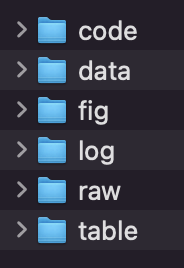
Organized analytic work in a folder whose top-level subfolders have simple names that clearly describe content and are abstract enough to be used across different projects.
Except for simple projects (that you are confident will stay simple):
- Separate raw data from datasets used in analyses
- Separate code files from the outputs of code files
When you start a project, you do not know how complex it might eventually get, and this is a very scalable structure that will require minimal adjustments as a project gets more complex.
Here are recommended core folders and names:
code: contains code filesdata: contains data files used for analysisraw: contains raw data fileslog: contains output filestable: contains tables used in paperfig: contains figures generated by code that are included in paper
The same principle can be expanded for workflows that generate different intermediate products, such as a “memo” folder for people who like to create and store analytic memos documenting progress in the analysis.
What about my paper drafts and presentations?
For many projects, analyses exist alongside the work of writing those analyses up and so folders that contain drafts of documents or presentation slides, etc.. Assuming a folder for the project, there are two ways this might be organized:
- Other directories like “drafts”, “presentations”, etc., alongside the analysis folders as the top-level subfolders of the project folder.
- Having the main project folder contain a top-level subfolder called “Analyses” that contains all the analysis subfolders, along with whatever other top-level subfolders to organize the non-analysis materials of the project.
A key advantage of #2 would be that the non-analysis parts of a project might benefit from a very different organizational structure than the data analysis, and if everything is alongside each other in the main folder it may be confusing. Also, #2 makes it easier to subsequently create a replication package from one’s analyses.
Use multiple code files
While at the start of analyses you might do everything in a single code file, only the simplest projects should remain that way. Instead, as soon as the single file becomes cumbersome (if not sooner), you should break the work into multiple code files.
The longer a code file gets, the harder it gets to work with in terms of locating different parts of code and understanding how its operations is impacted by earlier code in the same file.
This is especially the case for a user new to the code or returning to it after some time.
Also, when you break code into multiple files, then you can use filenames to help identify different parts of the project.
Often a first step when a project grows beyond a single code file is to separate the process of preparing data (e.g., constructing variables) from that of analyzing it.
The file(s) that prepare the data will often culminate in analysis dataset(s) on which the project’s analyses are based.
Have one code file that calls all the others
You should have one code file that, when run, proceeds all the way from the raw data to all the results in the paper, by calling all your other code file in sequence.
Different people call this file different things, including a “master script” file and a “runall” file.
Crime shows talk a lot about a “chain of custody” where the path of evidence from a crime scene to a courtroom is carefully recorded to maintain its credibility. A master script file is like that: it demonstrates that path from the raw data to everything that is presented in the paper exists and can be reproduced.
As importantly, it helps the analyst keep straight how different parts of the analyses fit togehter.
The raw data is the data as you have received it, from wherever you received it, exactly as you received it. You should keep this file pristine, and any modifications should instead be saved in different files.
Minimize the extent to which you do operations other than call code files in your runall.
If your code mixes different packages in a way that would complicate having a single code file that can run everything, have clear documentation in the runall of what the code files that need to be run separately are an how they should be executed.
What if some of your code files take a very long time to run?
Your master script file should work in principle. This doesn’t mean that you should be re-running it continually during your analyses. Instead, your individual code files should be files that you can run independently, using intermediate analysis datasets, in order to obtain results.
Use relative paths for file operations
Relative paths reference files based on their location relative to the current working folder.
You can move the folder and no code changes will be needed for it to work.
You can share the folder with a collaborator or post it as a replication package, and others will not have to alter the code for it to work.
Write your code files assuming that the current working folder is the folder that contains the code file.
With relative paths, .. means to go up a directory. So, if you are using the folder structure specified above, so your code is in your code folder, the way you would access file mydata.csv in the data folder would be as:
../data/mydata.csv
Use a system of version control that does not change “current” version of files
Version control refers to some method for creating a “savepoint” for a file in your project where you can refer back to old versions or even revert back to them if it turns otu there is a problem with newer versions.
When writing, a common way of doing version control is to give each successive version of the file a new name, like mypaper-v3.doc. This is fine for writing, but not for the files with data analysis.
Instead, do your version control in a way that the filename of the “current” version of the file stays the same.
If you change the name of the current version of a code file, for example, the you’ll have to change your master script file to reflect the new name.
Or if you change the name of the analysis dataset, you’ll have to change it in every file that uses the analysis dataset.
If you want to use a sophisticated version control system like GitHub, great. It will automatically adhere to this principle.
If you are doing version control informally yourself, the trick is that you when you want to have a saved version, you don’t give the “current” version of the file a new name. Instead, you change the name of the “previous” version of the file.
Say you have a file called myfile and you reach a point where you want to have a saved version of it. The “current” version of the file–the one you are going to keep making changes to–should keep the name myfile. The “previous” version of the file–the one you may want to refer to later–is the one that should get a new name, say to myfile-v1.
Better still, keep these renamed old versions of the file in folder called “old” that is a subfolder of the current folder. That way, you can keep all the versions you like, but it still won’t clutter the current version of the directory. And if you want to exclude those files from a replication package, you just have to leave out the folders named old.
What about my paper drafts and presentations?
Many people affix a rolling set of version numbers or dates to filenames in Word documents or PowerPoint presentations. As long as folks are able to figure out what name is the most recent version, this usually doesn’t cause any problem, because usually Word or PowerPoint files are not called by code in other files. So nothing breaks when you change the current version of a filename to something new.
The reason your data analysis files are different is because writing good code files for complex files means having multiple files that reference one another, and when you do that, changing filenames will break things.
Use self-documenting names whenever possible
A self-documenting variable name is one that transparently conveys information about the meaning of the variable.
For example, in one prominent social science dataset, the variable that provides the id number for each user is named R0000100 in the raw datafile. The self-documenting alternative would be to rename this variable id or caseid.
Self-documenting names make it easier to understand what is going on with code and faster to refresh yourself with what code does.
For collaborators or other people looking at code, self-documenting names also help make your code more readable.
For looking at statistical output, self-documenting names reduce the cognitive operations needed to parse results and so let you focus on the numbers themselves, as opposed to also reminding yourself what numbers mean.
One will often see social science datasets in which variable names are limited to 8 characters because at one time this was the maximum allowed by much available software. In your own practice, you should go beyond 8 characters with abandon; the extra keystrokes are worth it for legibility.
At some point self-documentation becomes cumbersome for variable names and that cumbersome-ness is usually less than the length allowed by modern software. There is no hard limit but longer than 20 characters should be rare.
There is no obligation to use a longer name for a longer name’s sake if one is confident in the mnemonic power of the shorter name. For example, if working with US education data, one should not feel there is any problem with using
hsgradinstead ofhigh_school_graduate.A variable name often either cannot be completely self-documenting or cannot be completely self-documenting without being cumbersome. Self-documenting names are an aid to understanding that sometimes can obviate the need for other documentation, but they are by no means a complete substitute.
If one has a binary variable coded numerically, use 0 and 1 for the codes and have the self-documenting name indicate what one means. Likewise, if a using a variable coded as a Boolean TRUE or FALSE, have the self-documenting names indicate what TRUE means.
Include orienting documentation at the top of your code file
At the top of a file of code should be information that orients one to what the file does.
Orienting documentation helps a user get up to speed quickly about what the code does and what it needs.
Having it at the top of the code file means a user will not have to hunt for it.
The big pieces of orienting information are:
Mission: What the code file does.
Inputs: What the code file needs in order to be run successfully – the names of whatever files provide the inputs for the code and any special information that might be needed for using those inputs with the file.
Outputs: What files the code file produces.
Warnings or Notices: Any known problems with the code or other information that might lead to an understanding by users.
There can be other information that particular users and teams might decide is important. It is worth keeping in mind that the longer the orienting information is, the more a user will skip or skim it rather than read it.